How do I create reusable proposal sections for projects?There are four ways to add proposal questions to your project's proposal requirements:
- Add proposal sections that are suggested by your company.
- Add proposal sections from your company's proposal section library.
- Create your own proposal sections and questions.
- Have Glo suggest sections and questions while you build your questionnaire.
Related articles:
- How do I create reusable proposal sections for projects?
- Glo Suggested Questionnaire Sections and Questions
Add proposal sections that are suggested by your company
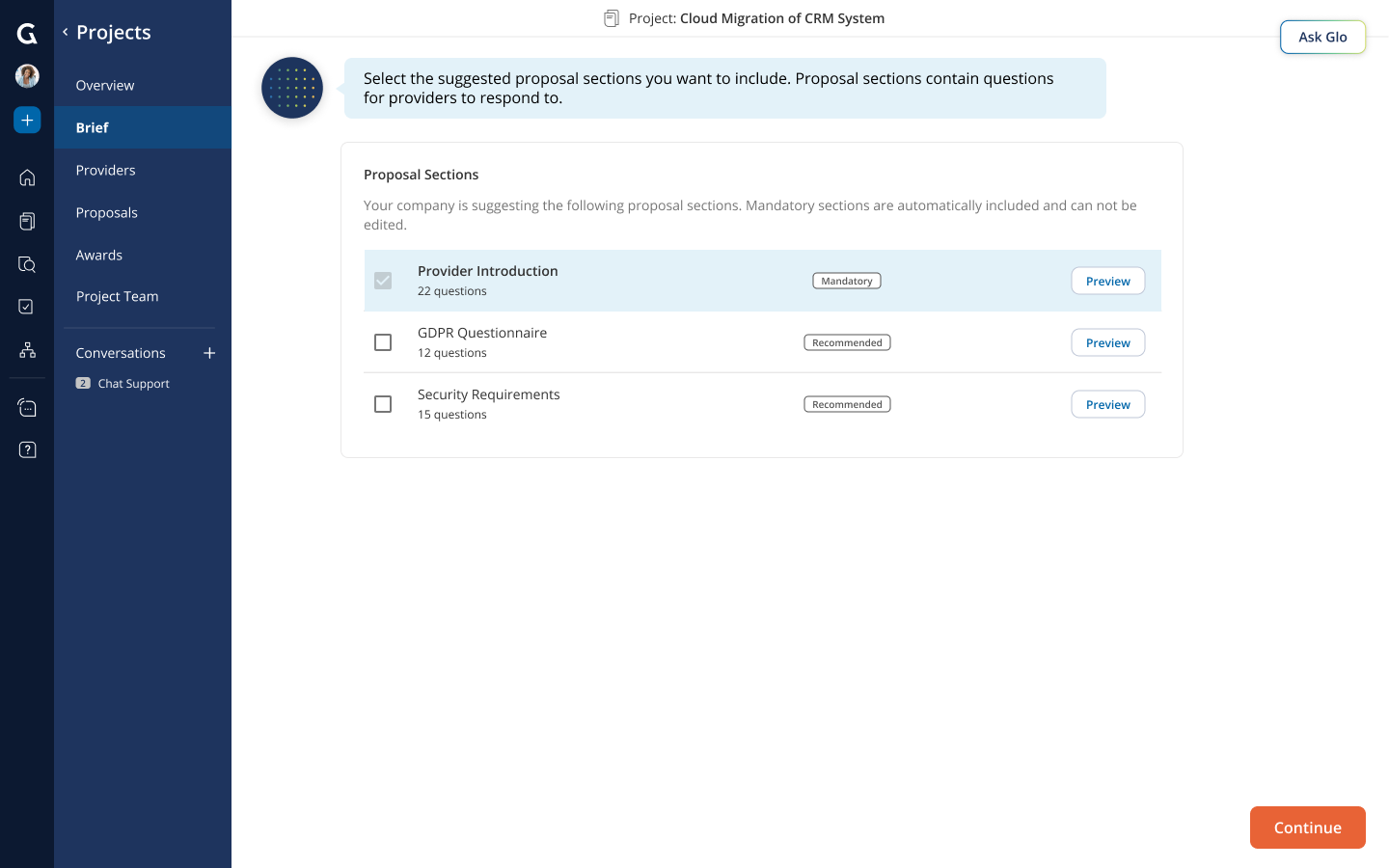
1. During Brief scoping, Glo will display suggested proposal sections to you for selection. Proposal sections contain questions for providers to answer. Mandatory proposal sections must be included and cannot be edited by the project team, while recommended proposal sections are optional and can be edited. The Preview button shows the proposal section’s questions from the provider’s perspective.
2. Select the proposal sections and click “Continue” to add them to your project’s proposal requirements.
Add proposal sections from your company’s proposal section library
1. From the proposal builder screen, click on “Proposal Section Library”.
2. Browse reusable proposal sections in the library and add them to your project’s proposal requirements. A proposal section contains questions for providers to answer. The Preview button shows the proposal section’s questions from the provider’s perspective.
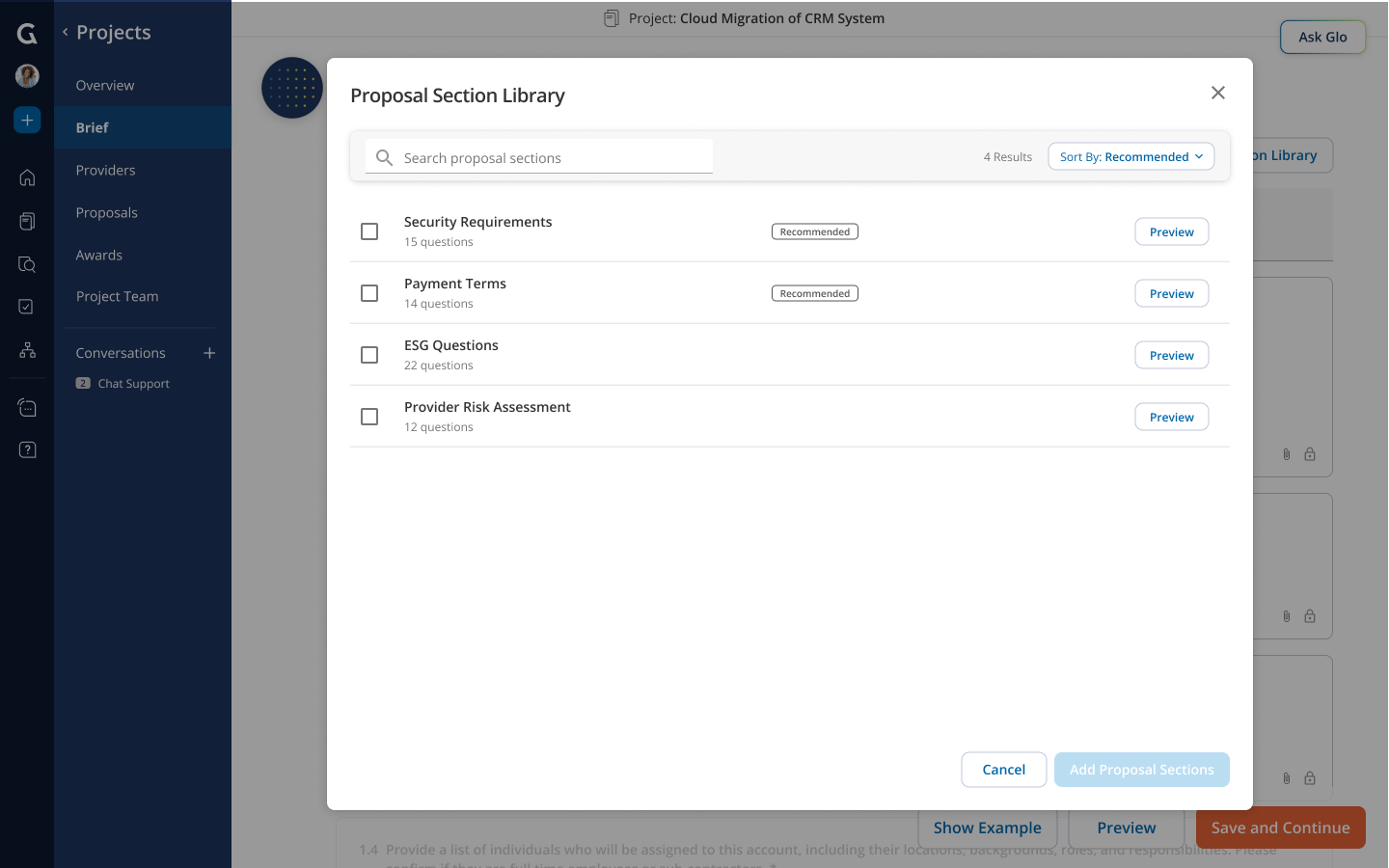
3. Save your changes by clicking “Save and Continue”.
Create your own proposal sections and questions
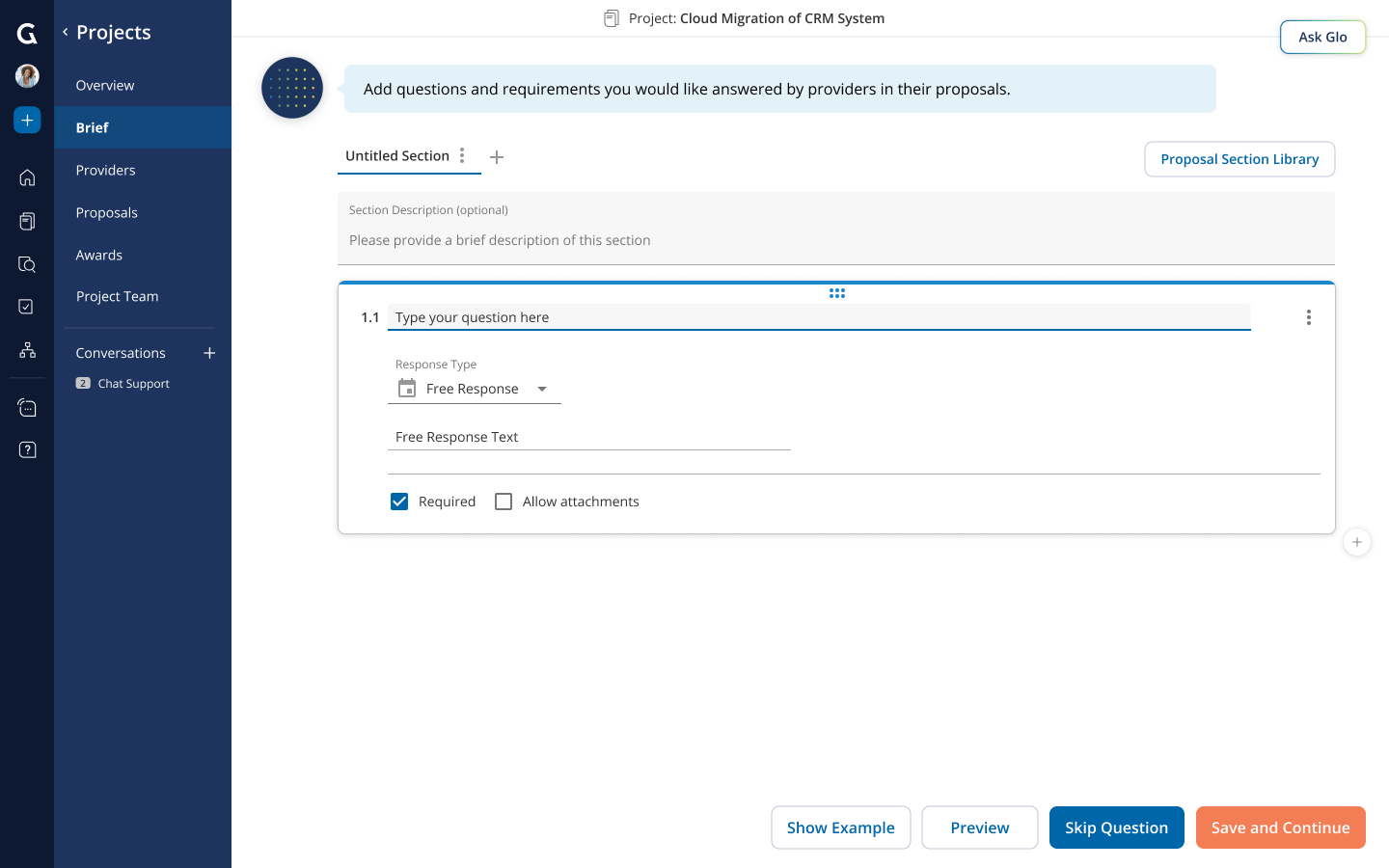
During Brief scoping, add and edit proposal sections and questions with the proposal builder. A proposal section contains questions for providers to answer.
Common Actions:
- Add a section - click the “+” button on the right of the section tab. Each section requires at least one question.
- Max number of sections - 25
- Add questions - click the “+” button on the bottom right of each question.
- Max number of questions per section - 100
- Add multiple questions - click the “+” button on the bottom right of the question and select “Add Multiple Questions”, then copy and paste from your existing document or type in multiple questions.
- Change response types - use the “response type” dropdown menu for each question to select the desired response type.
- Free Response - provider can respond in free text format up to 5,000 characters.
- Multiple Choice - provider can select from multiple choice options (up to 10 options).
- Matrix - provider has the same multiple-choice options for a set of questions.
- Require a question - check the “Required” checkbox for any question you want to require a provider response.
- Allow attachments - check the “Allow attachments” checkbox for any question you want to allow providers to include attachments.
- Change the order of questions - hover over the top part of the question and drag and drop the question.
- Change the order of sections - drag and drop the section tab.
- Delete a question - click on the action menu (three dots) in the top right corner of the question and click "Delete Question."
- Delete a section - click on the action menu (three dots) in the section tab and click “Delete Section.”
- Save your changes – click the “Save and Continue” button in the bottom right corner of the screen.
Have Glo suggest sections and questions
While you build your questionnaire during project creation, Glo can suggest sections and questions based on your project description and scope, any scoping documents you uploaded, guidance you give Glo by prompt, and any existing questionnaire you upload. This is separate from the proposal sections your company suggests, which come from your organization's library.
You can add each suggestion as-is, edit it before adding it, or remove it. Suggestions are additive and never replace content already in your questionnaire.
For details, see Glo Suggested Questionnaire Sections and Questions.
Was this article helpful?
That’s Great!
Thank you for your feedback
Sorry! We couldn't be helpful
Thank you for your feedback
Feedback sent
We appreciate your effort and will try to fix the article