- Navigate to your project.
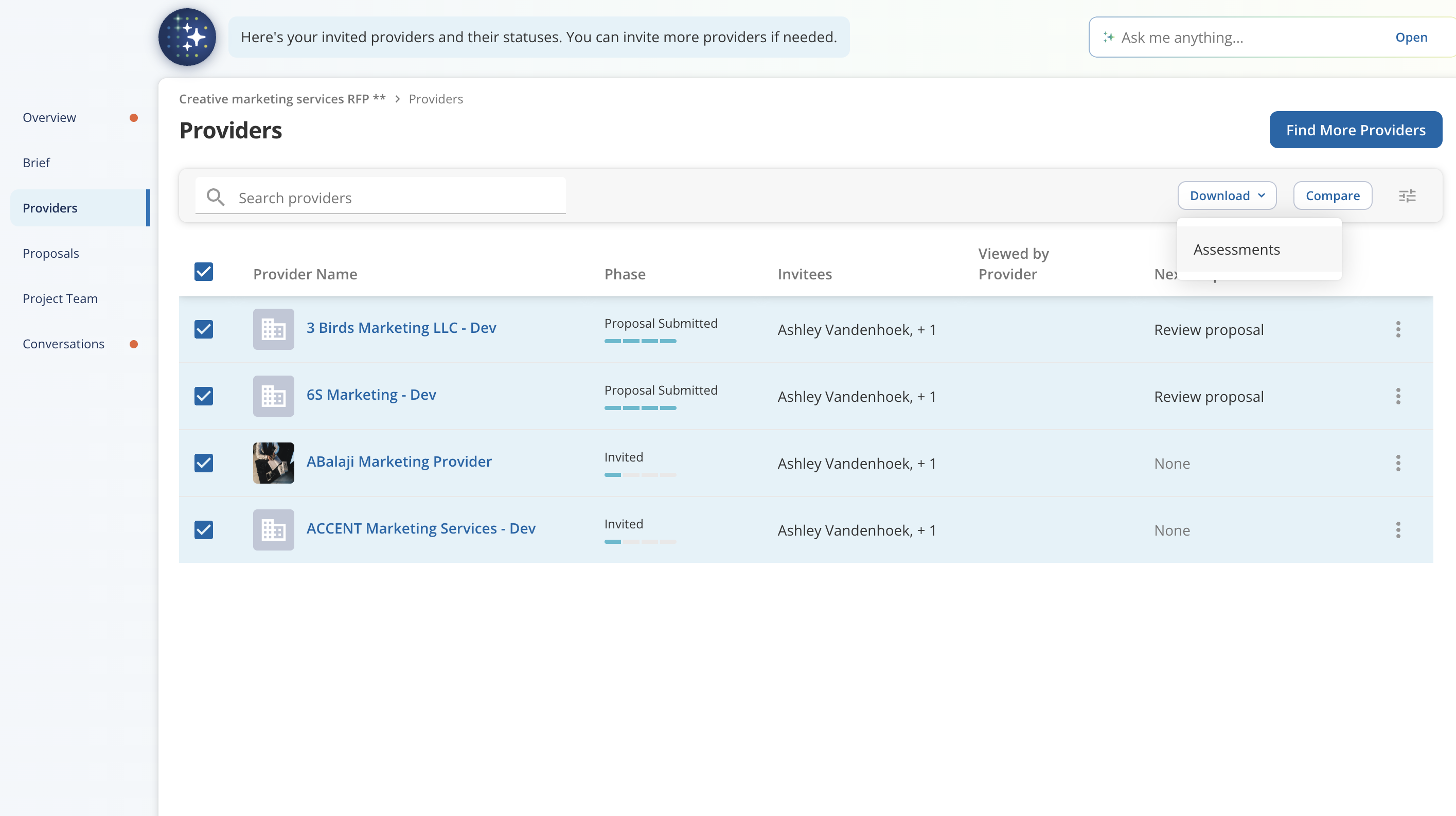
- Click on the Providers tab in the project menu.
- Select the providers you’d like to export assessment data for.
- To export all providers, select all.
- Trigger the export using one of the following methods:
- Click Download from the Providers page, or
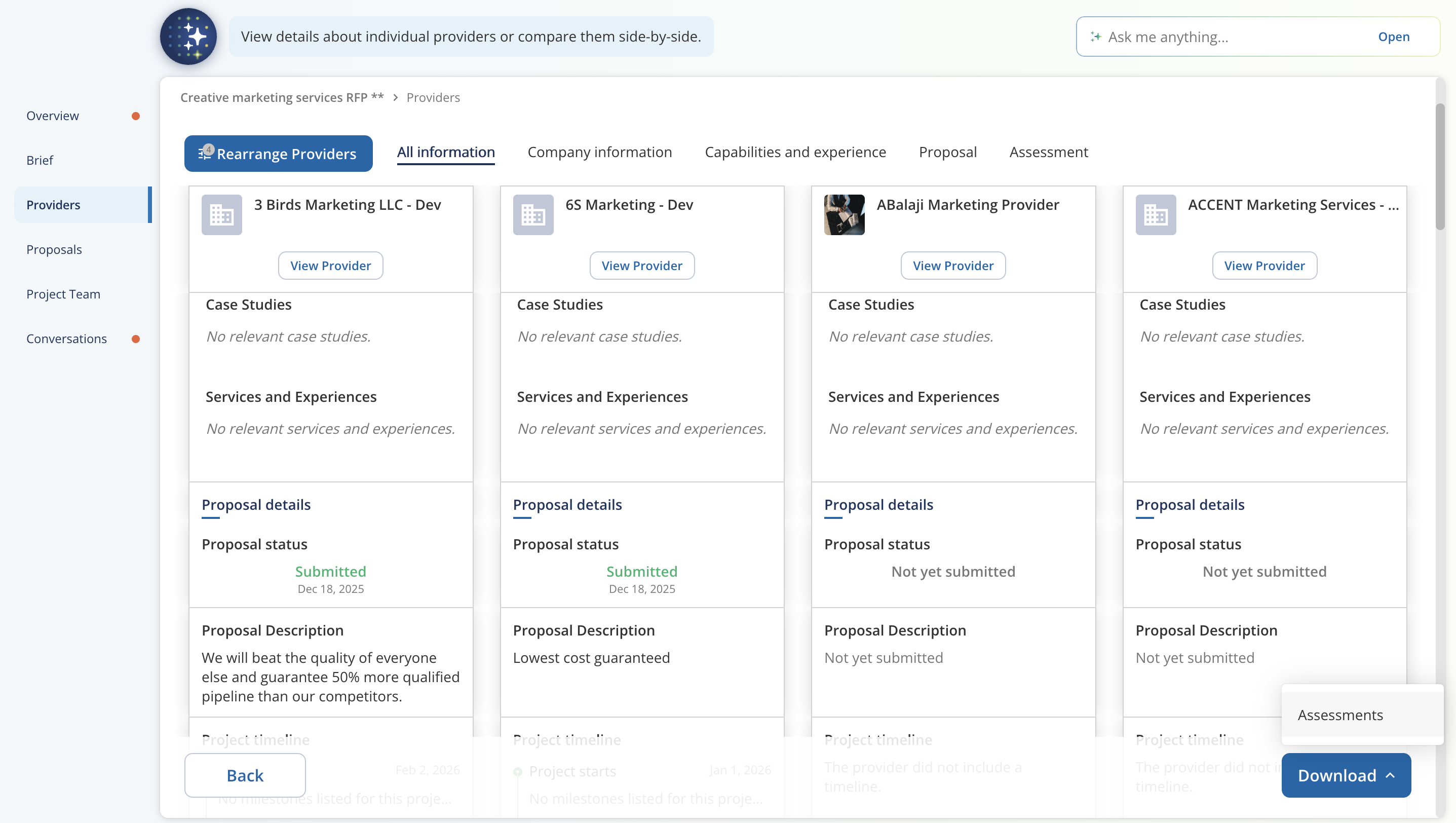
- Click Compare, then click the pinned Download button in the bottom-right corner.
- The supplier assessment data will be downloaded to your computer in CSV format.
The CSV file includes supplier assessment responses and related details for offline review or sharing.
Permissions
The option to export assessment data is available to users with the following roles:
- Procurement Admin
- Category Manager
- Procurement User
- Super Admin
- System Admin
If you do not see the option to export assessment data, you likely do not have one of the required roles.
Was this article helpful?
That’s Great!
Thank you for your feedback
Sorry! We couldn't be helpful
Thank you for your feedback
Feedback sent
We appreciate your effort and will try to fix the article